
Your private
AI command center for Mac.
Apex puts a smart, capable assistant right on your Mac — chat, create images, organize your work, and build a memory that actually remembers you. Everything runs on your machine, so your conversations and files stay yours.
🔒 The promise: it all stays on your Mac
Apex works offline by default. Your chats, images, notes, and everything you teach it live only on your computer — nothing is uploaded, sold, or used to train anyone's model. You're always in control of what it can do.
Getting started
You'll be up and running in under a minute.
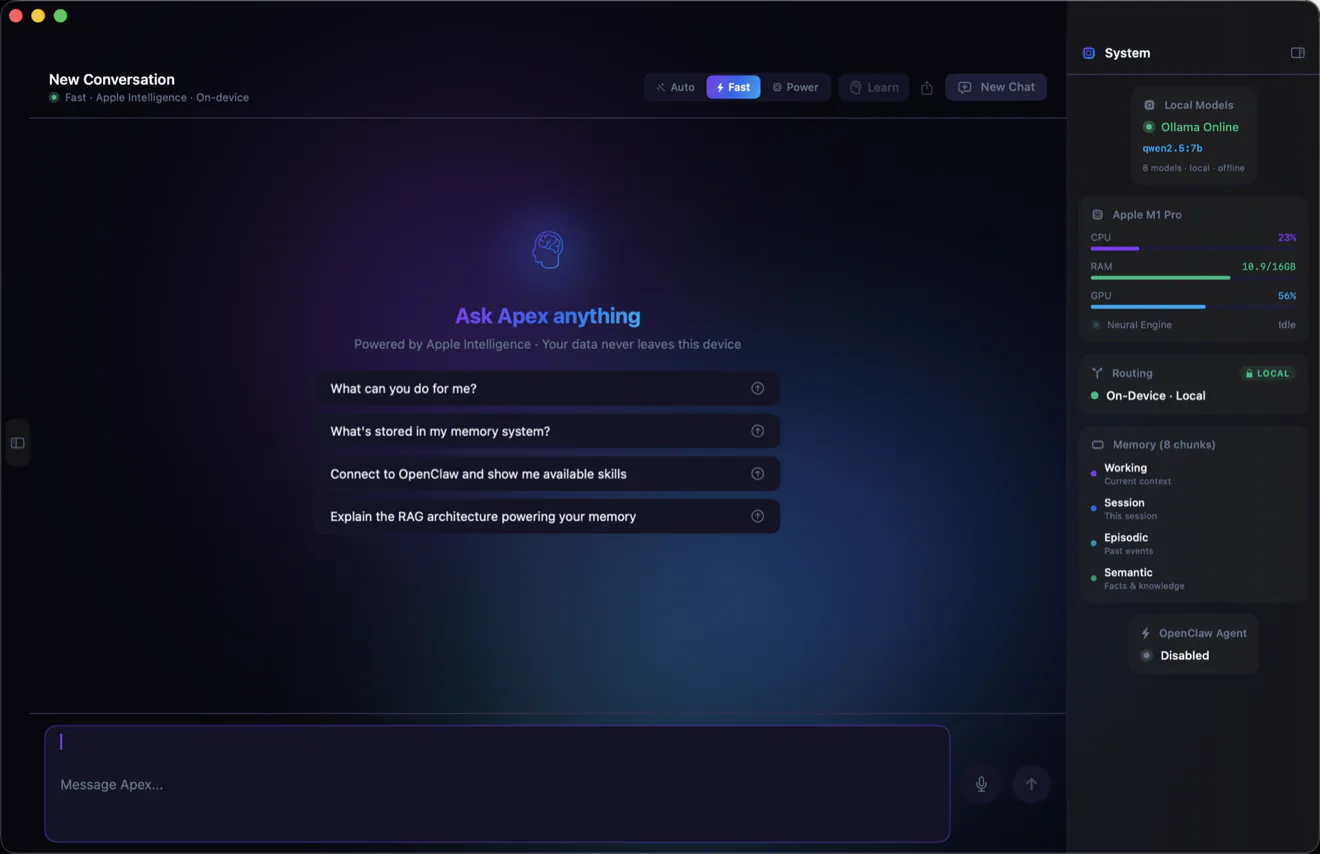
- Open Apex. On your first launch, a quick welcome tour walks you through the essentials — asking from anywhere, letting it take action, seeing your day, and how your data stays yours — then you're chatting right away, no setup required.
- Say hello in Chat. Click Chat in the left sidebar, type a question, and press Return. That's it — you're talking to your on-device assistant.
- Make it yours. As you go, teach Apex your preferences (see Teaching Apex) so its answers fit the way you work.
A quick tour
Everything in Apex lives behind the tabs on the left. Here's what each one does.
Ask Apex anywhere
Apex is always a keystroke away — no switching windows, no hunting for the app.
- Right from the menu bar. A little Apex icon lives up in your Mac's menu bar — click it for a quick box to ask a question or glance at your day.
- One hotkey, from any app. Press ⌥ Space wherever you are and Apex pops up instantly. Ask, then get right back to what you were doing.
- It lands in Chat. Whatever you ask flows straight into your conversation, so the full assistant — memory and all — is right there when you want to go deeper.
Talking to Apex
Chat is home base. Ask questions, brainstorm, draft messages, get help with your projects — Apex answers using AI running entirely on your Mac.
How to use it
- Type your message in the box at the bottom and press Return to send. (Use Shift+Return to add a new line.)
- Prefer to talk? Click the microphone and speak — your words appear as text.
- Need a clean slate? Click New Chat in the top bar. Want to keep a conversation? Use Export to save it as a document.
Good to know
- Two speeds. Use the mode picker in the top bar — Fast for quick answers, Power for deeper help, or Auto to let Apex choose.
- It remembers. Apex carries context from your conversations and from anything you've taught it, so you don't have to repeat yourself.
- Copy anything. Select text in any reply, or right-click a message to copy it.
Bring in documents and images
- Attach a document. Click the 📎 in the bottom bar (or drag a file onto the chat) to add a PDF, text, Markdown, rich-text, or web-page file, then ask about it — Apex reads it for that chat.
- Show it a picture. Attach an image and Apex can describe it or answer questions about it — all handled right on your Mac.
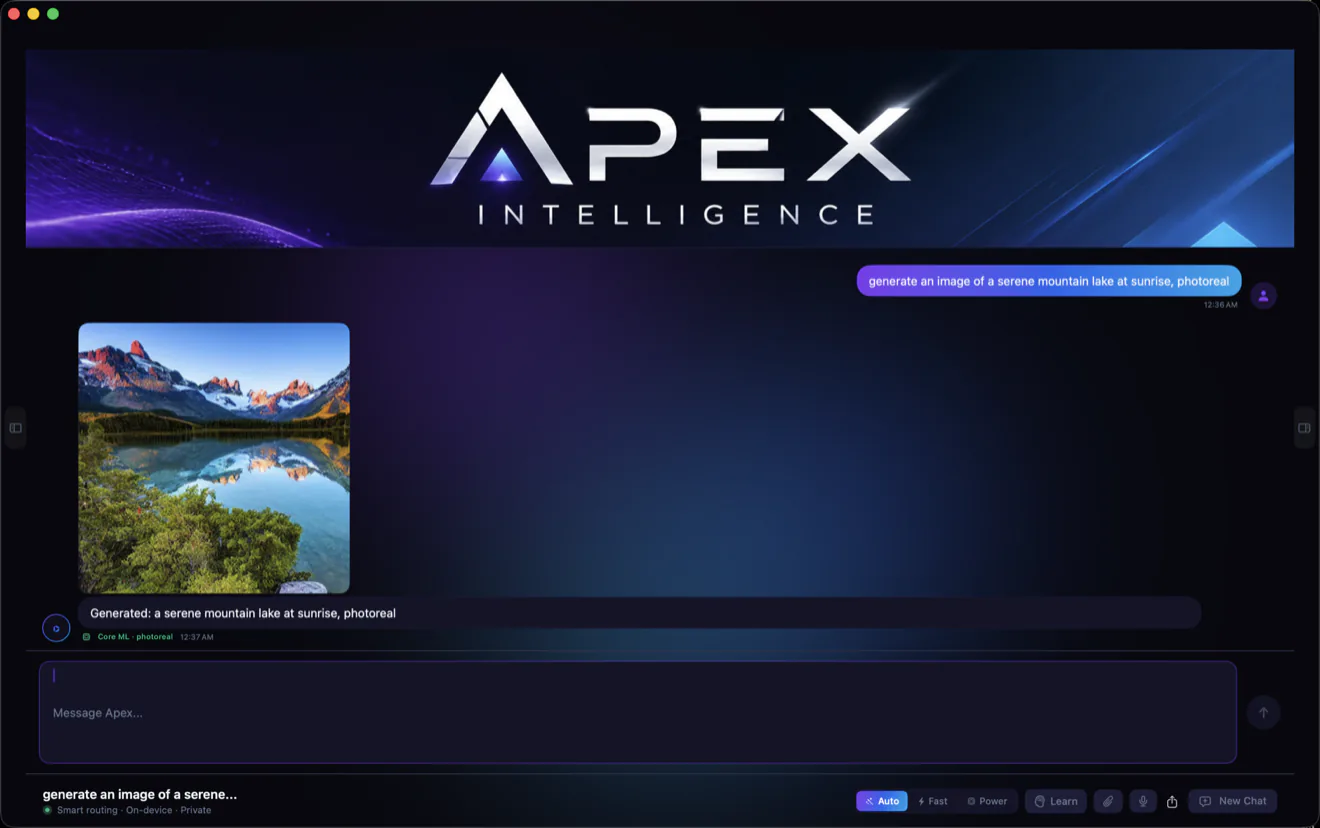
- Make an image, just by asking. Type something like "make an image of a mountain lake at sunrise" right in Chat and Apex generates it inline — no separate app, no pop-ups. (More in Creating images.)
Takes action on your Mac
Apex doesn't just talk — with your permission, it can actually get things done on your Mac.
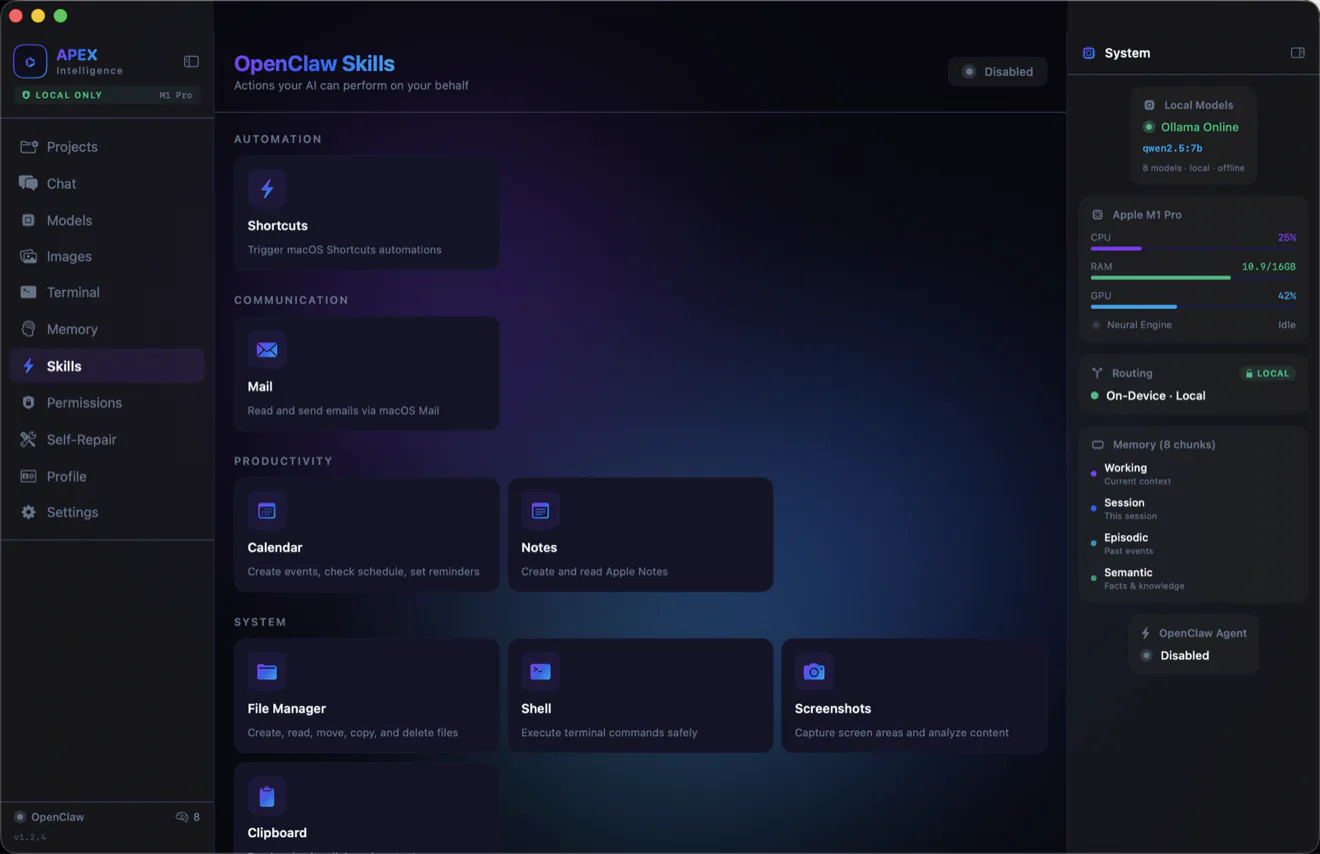
- Files & folders. Create, rename, and organize files and folders for you.
- Reminders & calendar. Add a reminder or set up a calendar event from a single sentence.
- Notes. Jot something straight into Apple Notes.
- Email drafts. Open a ready-to-review draft in Mail — Apex never sends mail on its own; you read it and hit send.
- Clipboard. Read what you've copied, or drop a result straight onto your clipboard.
- Open apps & run Shortcuts. Launch an app or kick off one of your Mac Shortcuts on request.
- Glance at your screen. Ask Apex to take a look at what's on screen and describe what it sees.
Watch it work
When a request takes several steps, you watch Apex work through them in real time — each step checked off as it goes — so you always know exactly what it's doing.
Every action asks first. Apex pauses for your okay before anything that touches your Mac, and you decide exactly what it's allowed to do in Permissions. Nothing happens behind your back.
Your daily briefing
Apex can keep an eye on what's coming up — so it's ready before you even ask.
- It knows your day. With your permission, Apex reads your calendar and reminders — right on your Mac — so your schedule is always in mind.
- A morning hello. Open Apex to a quick briefing of what's ahead, so nothing sneaks up on you.
- Just ask. Say "what's my day look like?" anytime for a rundown of your meetings and to-dos.
Teaching Apex
This is what makes Apex feel like your assistant. The more you teach it, the better it fits you — and everything you teach is applied automatically in future chats.
Three ways to teach
- Remember this. Right-click any message → Remember this. Great for saving a fact, a preference, or something you said once and don't want to repeat.
- Teach a rule directly. Go to and type something like "Always keep answers short and to the point" or "My business is called RISE Studio Labs."
- Correct a reply. If Apex gets something wrong, right-click its reply → Correct this reply… and tell it what to do instead. It won't make the same mistake.
Let Apex learn on its own
- Have a normal conversation in Chat.
- Click Learn in the top bar.
- Apex pulls out the lasting facts about you from that chat and remembers them — a quick banner tells you how many it picked up.
See and manage everything
Open the Memory tab and choose the Taught filter to see everything Apex has learned, marked or . Don't want one anymore? Right-click it and delete — you're always in control of what it knows.
Creating images
Describe what you want and Apex makes it — no design skills needed. Pictures are created on your Mac.
Create images right in Chat
The quickest way is to just ask. In Chat, type something like "generate an image of a serene mountain lake at sunrise" and Apex creates it inline — no separate window, no setup.
⚡ Fast — and it never leaves your Mac
No upload, no cloud queue, no round-trip to a server. A full photoreal image renders right in your chat in seconds — generated entirely on your machine, with no account and nothing sent anywhere.
- Built-in and instant. Apex uses Apple's on-device image tools out of the box — nothing to install.
- Photoreal, on your Mac. Want crisp, photoreal results? Add a free on-device engine in (about 2.3 GB). After that, chat images are generated photoreal, entirely on your machine — no cloud, no accounts.
The Images studio
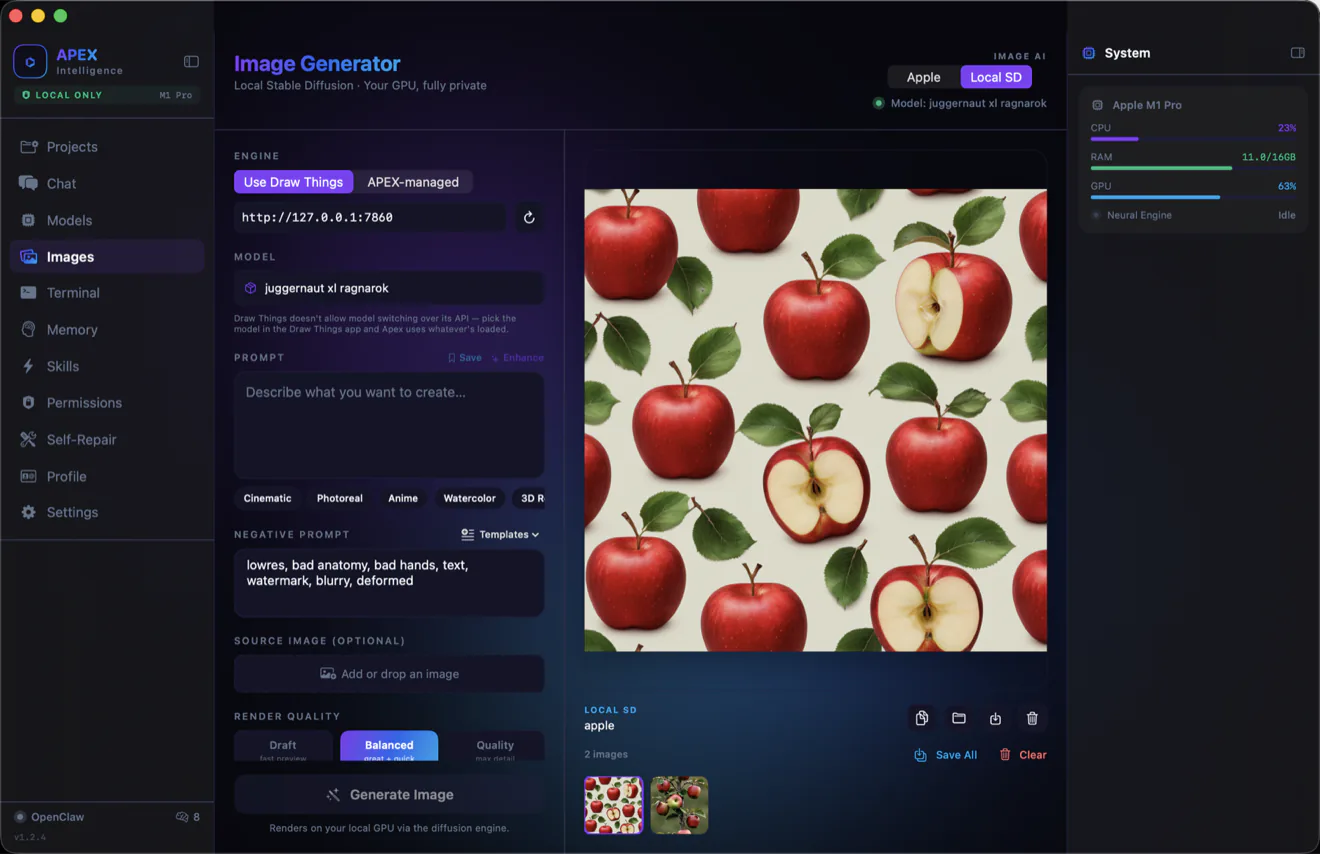
Prefer a dedicated workspace with styles, presets, and fine control? Open the Images tab.
How to use it
- Open the Images tab and type what you'd like to see in the prompt box.
- Not sure how to word it? Tap ✨ Enhance to have Apex polish your description, or tap a style chip (Cinematic, Photoreal, Anime, and more) to add a look.
- Pick a Render quality — Draft, Balanced, or Quality — then click Generate Image.
Handy extras
- Save your favorite prompts. Click Save next to the prompt box to store a prompt (and its settings) and reuse it later from Saved Prompts.
- Look closely. Pinch on the trackpad to zoom, drag or two-finger-scroll to move around, and double-click to reset.
- Keep what you like. Copy an image, save it to a folder, or reveal it in Finder using the buttons under each result.
- Two image engines. Use the Image AI switch to choose Apple's built-in image tools or a local image engine for extra control.
Projects
Tell Apex about the things you're working on, and it keeps that context in mind when you chat.
- Open the Projects tab and add a project — give it a name and point it at a folder on your Mac if you'd like.
- Set a project as active so Apex tailors its help to that work.
- Switch projects anytime; Apex follows along.
Memory & documents
The Memory tab is Apex's long-term memory. It quietly remembers useful things from your conversations, holds everything you've taught it, and can store documents you want it to know.
Add your own documents
- Open Memory and click Import — or just drag a file onto the window.
- Apex reads PDFs, text, and notes, then can reference them when you ask related questions.
- Use the search box and the filters at the top to find anything it's holding.
Index a whole folder
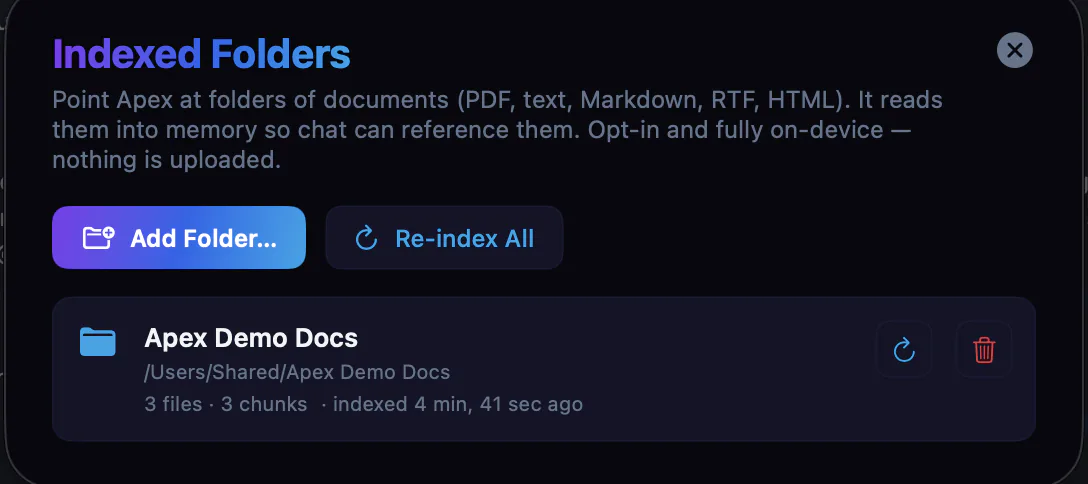
Have a folder full of documents? Point Apex at it once and it reads them all into memory — so you can ask about them in chat without importing files one by one.
- In Memory, click Folders → Add Folder… and pick a folder.
- Apex reads the documents it understands — PDFs (even scanned or image-only ones — it reads the text right off the page), text, Markdown, rich text, and web pages — and quietly skips everything else, like very large files and anything your Permissions keep off-limits.
- Re-index anytime to pick up changes, or Remove a folder to take its documents back out of memory. You're always in control — only the folders you add are read, and everything stays on your Mac.
Your memory, in your control
When Apex uses what it remembers about you to answer, you can tap to see exactly which memories it drew on — and forget any that are out of date or wrong, right there. Nothing about you is a black box.
Voice
Don't feel like typing? Click the microphone in Chat and just talk. Your speech is turned into text on your Mac and added to the message box, ready to send or edit.
Hear it back
Want to listen instead of read? Tap to have Apex read any reply out loud — spoken entirely on your Mac.
Talk with Apex, hands-free
Turn on hands-free mode and just talk: Apex listens, answers out loud, then listens again — a natural back-and-forth with no keyboard. Say "stop listening" when you're done. It all happens on your Mac.
Privacy & control
Apex is built around a simple idea: your stuff is yours. Two screens put you in charge.
Settings
- Local Only Mode is on by default — Apex makes no outside connections, so nothing leaves your Mac.
- Adjust how much Apex remembers, clear its memory, or check the app version.
Permissions
- Decide what Apex is allowed to do on your Mac — and what it must ask you first.
- Limit it to specific folders, and review the rules in plain language.
- When Apex wants to do something sensitive, it pauses and asks for your okay.

In short: offline by default, no tracking, no cloud, nothing shared. You decide what Apex can touch.
Your Apex, on every Mac
Got more than one Mac? Take your whole Apex with you.
- Export everything to one file. Your memory, conversations, projects, and images — bundled into a single file you control.
- Import on another Mac. Bring it all across in a few clicks and pick up right where you left off.
- Only when you choose. Nothing moves on its own — your data travels only when you decide to move it.
Your data stays yours — it lives on your Macs, moves only by your hand, and never through anyone's cloud.
Power tools
A few features go further for advanced users. You can safely ignore these until you need them.
- Terminal. Run Mac commands with the assistant's help — handy for technical tasks.
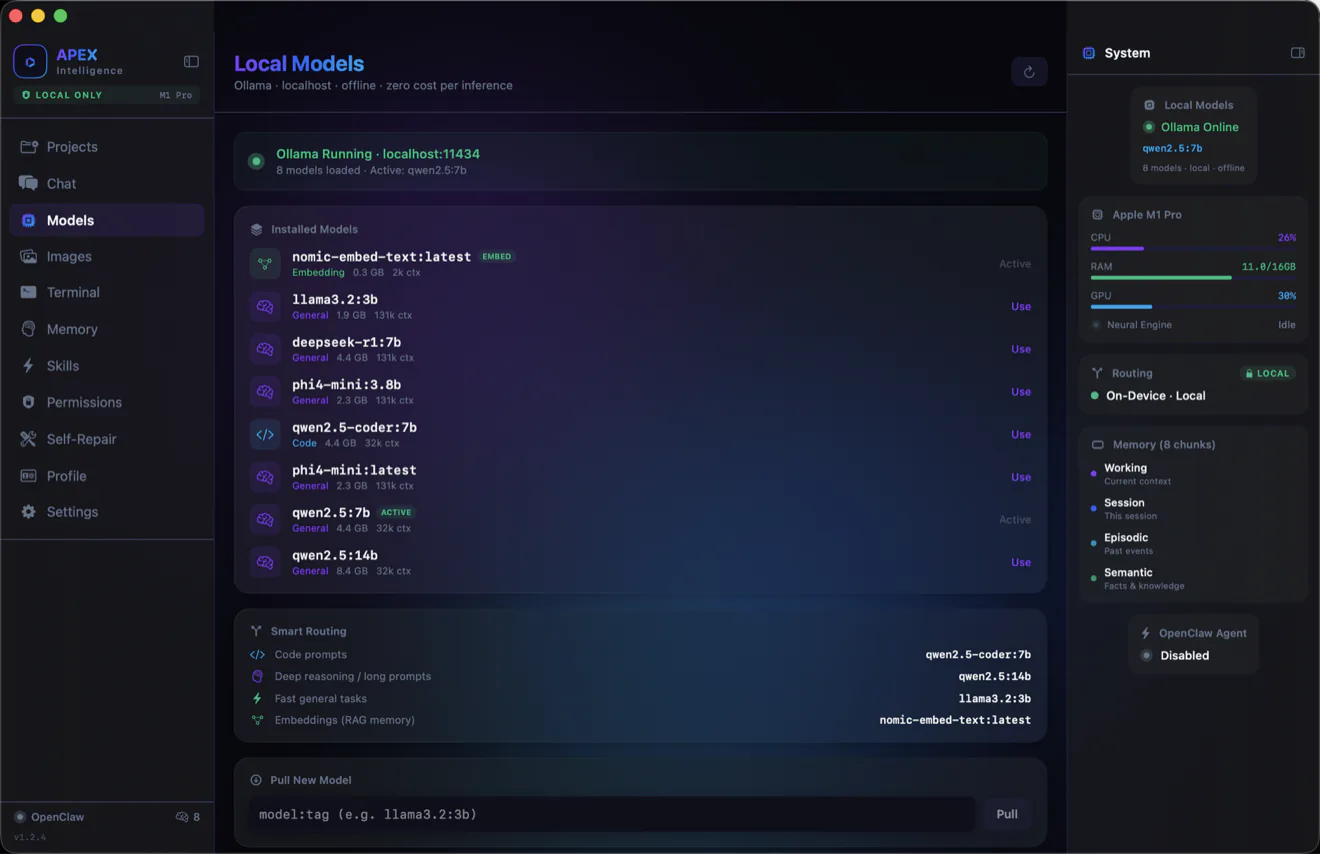
- Models. See and manage the local AI engines Apex runs on. It works out of the box; this is here if you want to add or switch engines.
- Skills. The on/off switches for what Apex can do on your Mac — see Takes action on your Mac. Off by default; turn on only what you want, and Permissions still apply.
- Always up to date. Apex keeps itself current — new versions install with a click, verified and signed by the developer. No hunting for downloads.
- Self-Repair. For the technically curious: Apex can check and tidy itself up. Most people never need this.
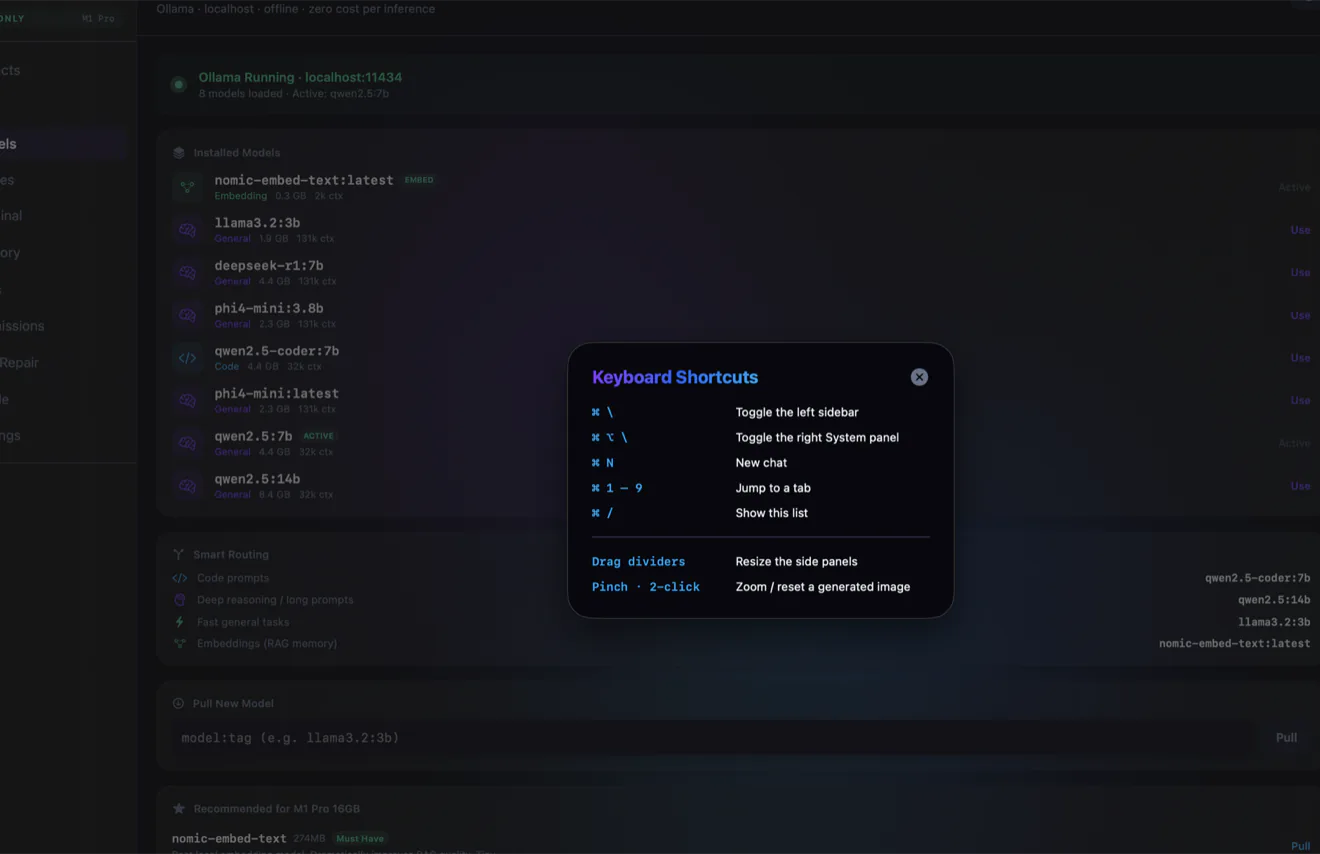
Keyboard shortcuts
| Shortcut | What it does |
|---|---|
| ⌘ / | Show the full shortcuts cheat sheet |
| ⌥ Space | Summon Apex from any app — the menu-bar quick ask |
| Return | Send your chat message |
| Shift + Return | Add a new line without sending |
| ↑ | In an empty chat box, bring back your last message |
| ⌘ Q | Quit Apex (with a friendly goodbye, saving as it closes) |
FAQ
Does Apex send my data anywhere?
No. Apex runs on your Mac and works offline by default. Your chats, images, documents, and everything you teach it stay on your computer.
Do I need an internet connection?
Not for the core experience — chatting, memory, and image creation all happen locally. You only need the internet for one-time setup or optional downloads.
How do I make Apex remember something forever?
Teach it: right-click a message and choose Remember this, or use . It's then applied in every future chat until you remove it.
Apex got something wrong. How do I fix it?
Right-click the reply and choose Correct this reply…, then tell it the right answer. It remembers your correction going forward.
Where do my created images go?
They stay in the Images gallery. From there you can copy them, save them to any folder, or reveal them in Finder.
Can I stop Apex from doing things on its own?
Yes — that's what the Permissions tab is for. By default, sensitive actions are off or require your approval. You set the rules.
Can Apex actually do things on my Mac?
Yes — with your permission it can create files, set reminders and calendar events, jot notes in Apple Notes, open a Mail draft for you to send, use your clipboard, open apps, run Shortcuts, and more. Every action asks first, and it never sends an email on its own. See Takes action on your Mac.
How do I see the version I'm running?
It's shown in the bottom-left corner, and in .
Can I move Apex to another Mac?
Yes. Export your whole Apex — memory, conversations, projects, and images — to a single file, then import it on another Mac. Your data moves only when you choose to move it. See Your Apex, on every Mac.
Does Apex update itself?
Apex keeps itself current — new versions install with a click, verified and signed by the developer. No hunting for downloads.
How do I get help or contact support?
Email us anytime at support@risestudiolabs.com — we're glad to help.